Task Workflow is the number and sequence of Statuses the Task should go through from the moment of initiation to complete accomplishment.
For example, the default task workflow starts with 'Draft' Status, when task is outlined but not scheduled, assigned, communicated, etc. Then it becomes 'Created' i.e. scheduled, assigned to Resource and Notification of it is sent to all concerned. When the Task is being handled by assigned Resource, it has 'In Progress' Status. Sometimes it may be 'Cancelled'. When the Task is 'Completed' by assigned Resource, it can be 'Verified' by Owner or Supervisor.
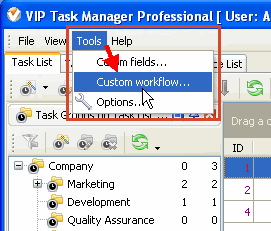
Select Edit Workflow in menu Tools
Each company has its own workflow so you can create your own Task Statuses, as well as create multiple workflow for different types of Tasks.
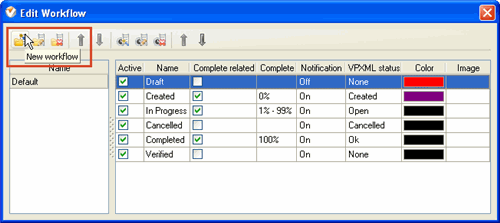
Click on New Workflow button
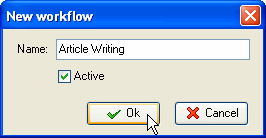
Enter Name and Click OK
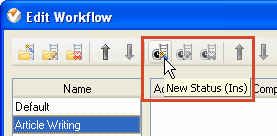
Click on New Status button
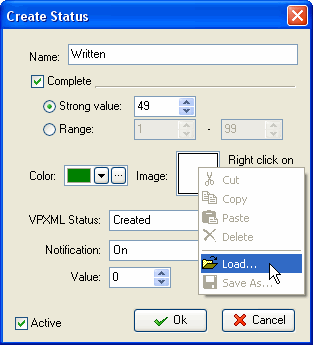
Give a name to the status and decide whether Task Status is connected with % of Task Completion. For example, if you create 'Half Done' Status, checked Complete and selected Strong Value 50, each time you change Status of a Task to 'Half Done', the % in the Complete column of Task List and Task Tree view will be changed accordingly to 50%.
You can set a font color and image (.BMP 16x16 pixels) for this status.
If you import a database from VIP Team To Do List you can associate the Status with the one from VPXML Status list.
You can turn Notification mode 'on' and 'off' for each Status, i.e. when a Task Status changes to the one with Notification 'Off', the Notification is not sent.
Assign ID number for this status using “Value” entry field and up-down buttons.
You can set the order in which Statuses will go one after another as a recommended task workflow for your employees or team members. Also you can set order in which types of Workflow will appear in drop down list for selection.
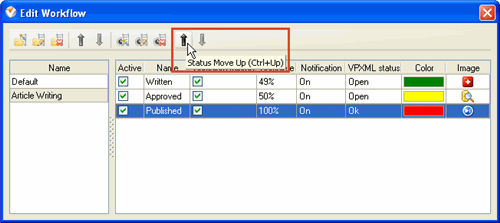
Select a Status or Workflow
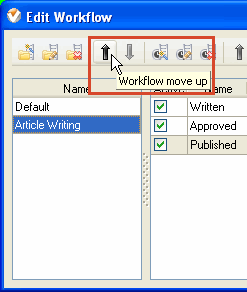
Click on Move Up button













 Play Demo
 Try It FREE