Your company resources may include any human resources available, ex.: employees, partners, contractors, etc. i.e. all concerned , however, we advise you to add only people (users) who will use the program in the LAN and Low Speed Networks.
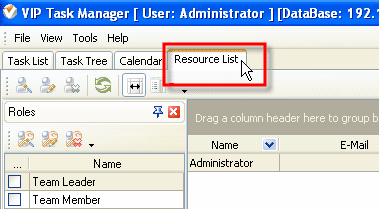
Select Resource List tab
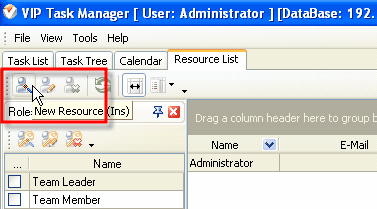
Click on New Resource button
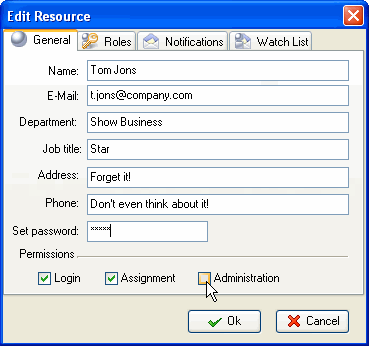
General tab allows you to enter some Resource information such as name, e-mail, department, job title, address, and phone number. If a Resource is a user of the program you should grant check Login Permission set a password for Resource to log in. The Resource can change this password later when he or she starts using the software. If a resource can be assigned to a Task you should check Assignment Permission. If a Resource is allowed to create, edit and delete other Resources, you should check Administration Permission.
When you assign a Resource to a particular Role or Roles you created, this Resource is granted permissions of this Role. For example, If you assign a Resource to 'Team Member' Role which allows only to see and edit the Tasks in Task Group 'Projects', this Resource will not be able to create and delete Tasks in Task Group 'Projects'. It saves your time as you don't have to set permissions for each Resource individually, all you need to do is to assign the Resource to appropriate Role that is granted certain permissions.
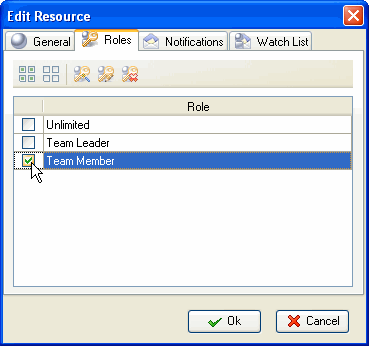
- Select Roles tab
- Check appropriate Roles
- Click OK
Notifications tab lets you choose the types of Notification this particular Resource will receive if he or she is associated with the Task somehow (The Resource is either Owner or Assigned to the Task). By default all types of Notifications are checked so the Resource will receive Notifications each time any attribute of the Task is changed. In practice the Resource will need to receive only some of these Notifications, for example when the Resource is assigned to the Task or when the Status of the Task is changed, so it is better to check only those types of Notifications the Resource really needs to receive. The Resource can check Notification types himself when he starts using the software.
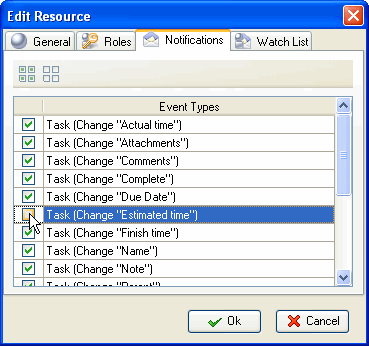
- Select Notifications tab
- Check appropriate Event Types
- Click OK
Note: You will be asked if you want to create a personal folder for each new user. Click 'Ok', if you want to.













 Play Demo
 Try It FREE