|
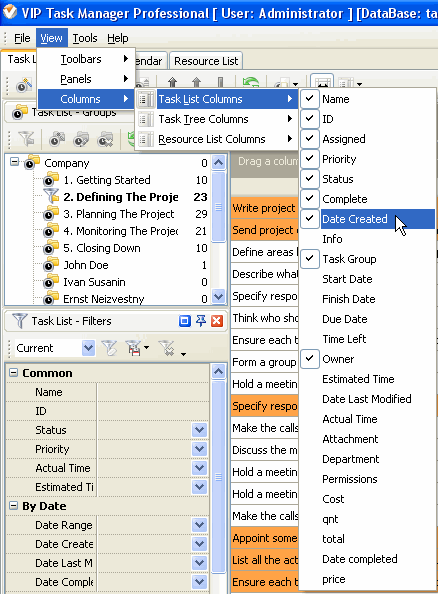
Besides Name, all Tasks have the following default parameters:
- ID " Unique number given to the Task when it is created
- Info " Shows if the Task has Notes, Reminder or Attachment
- Task Group " Folder to which the Task belongs
- Priority " Shows the level of urgency or importance of the Task
- Status " Shows the current state of the Task in given Workflow
- Complete " Shows how much of the Task is already done in percentage
- Attachment " Shows the first attached file or link of the Task
- Owner " User who created the Task
- Assigned " User who is assigned to the Task
- Department " Department to which Assigned user belongs to
- Start Date " Shows the date when the Task should be started
- Finish Date " Shows the date when the Task should be completed
- Due Date " Shows the date by which the Task should be completed (deadline)
- Time Left " Shows the time left till the Due Date
- Estimated Time " Shows how much time the Task is supposed to take
- Actual Time " Shows how much time the Task really took
- Date Created " Shows the date when the Task was created
- Date Last Modified " Shows the latest date when the Task was modified
- Date Started - Shows the date when the task was started
- Date Completed - Shows the date when the task was completed
If you don't need any of these parameters, you can easily remove them from your Task List. (see Customizing Views). If you need more parameters, you can easily add them to your Task list.
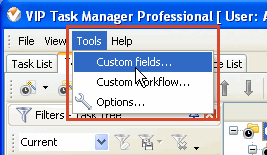
Select Custom Fields in Tools menu
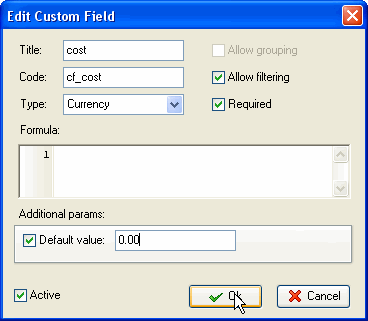
Set parameters for Custom Field:
- Title – Name of this Custom Field
- Type – Possibility to select the type of this Custom Field
- Allow filtering – Possibility to filter Tasks by Custom Field
- Allow grouping – Possibility to group Tasks by Custom Field
- Required – This Custom Field is required when adding or editing Tasks
- Formula – Possibility to enter some mathematical, logical and statistical formula for this custom field
- Active " This Custom Field is activated
- Default value " The data used by default when creating Tasks
Note, that you can edit and delete Custom Fields as well as change their order.


|
 |
| |
| |
| |
| |
| » Setting Tasks |
| |
| |
| |
| |
| |
| |
| |
| |
| |
| |
| |
| |
| |
 |
|











 Play Demo
 Try It FREE