Task management software for group collaboration
 
HomeDownloadSupportPurchase
 
OverviewFeaturesScreenshotsAwardsVersion HistoryTutorialsOnline Help

User Manual - How to set/change task Due Date

User Manual - How to set/change task Due Date
   
Home  » Products  » VIP Task Manager Pro  » On line Help  » User Manual - How to set/change task Due Date

To set task Due Date check "Due Date" option and select required date from "Due Date" drop-down list in "New Task" dialog while creating a new task. Alternatively, enter task Due Date using the keyboard.
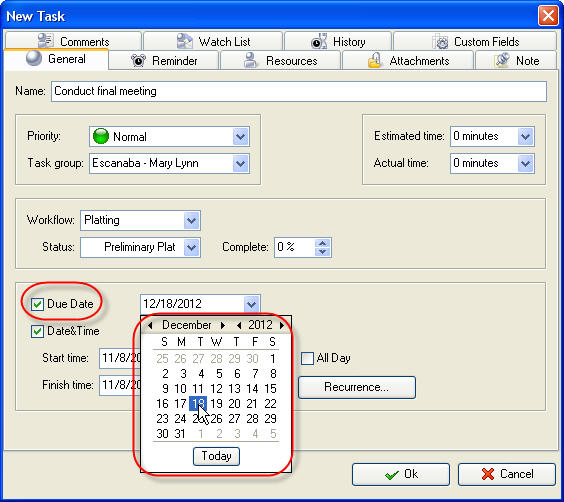
To change task Due Date open "Edit Task" dialog and repeat the actions mentioned above.
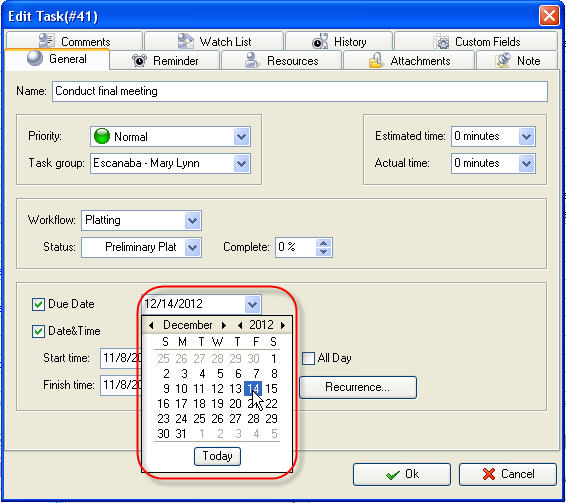
Tips:

  • To quickly select today's date click on "Today" button in "Due Date" drop-down box
  • To clear Due Date entry field click on "Clear" button in "Due Date" drop-down box


Play demo Play Demo

TryTry It FREE
Overview VIP Task Manager

» VIP Task Manager Pro
   VIP Task Manager Std
   Testimonials
   Turnkey Solution

Available: Workdays, Monday - Friday
8 am - 8 pm GMT for Europe/Asia
1 am - 1 pm PST for America


Task general

Jan 6, 2012 For three years on end our product is one of the best scheduling software
2012 Scheduling Software Review comes with the following verdict: VIP Task Manager Professional is “a great application for keeping track of personnel…”

More News


Login:
Password:
Register
Forgot your password?
Login As:
Login As
You can log in if you are registered at one of these services:

ProductsSolutionsDownloadSupportPurchaseContactsForumVideoMy Account
Copyright 2011 Task Management Software


Site Map