|
To send task groups by e-mail use following steps:
- Enter SMTP settings
-
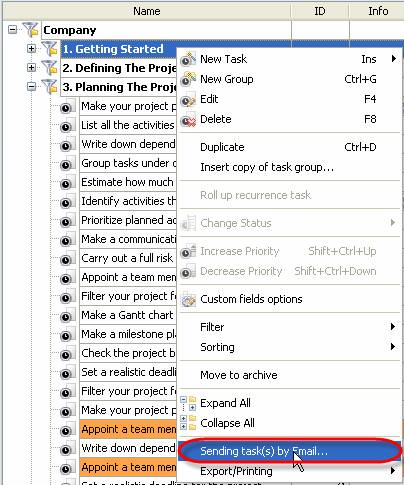
Start VIP Task Manager, right click on required task group and select ‘Sending task(s) by Email…’ from drop-down list
Note:
- Check data sections you want to be sent with task group
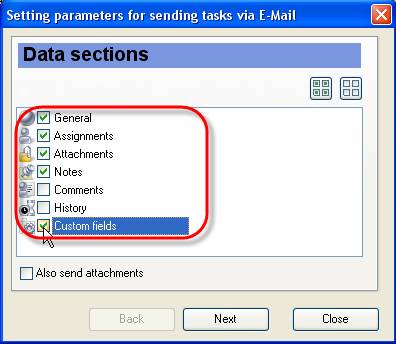
General – task group name, task group this task group belongs to, total Estimated & Actual Time of the tasks of selected task group, average completion percent of the tasks of selected task group
Assignments – the names of resources selected task group is assigned to
Notes – notes of selected task group
History – a history of task group changes
Custom fields – names and values of custom fields selected task group has
Note:
Tips:
- To quickly select all data sections click on
 button button
- To quickly uncheck all data sections click on
 button button
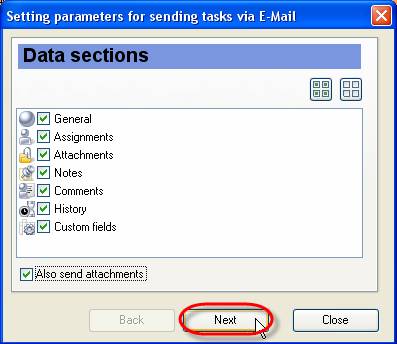
- Click ‘Next’ button
-
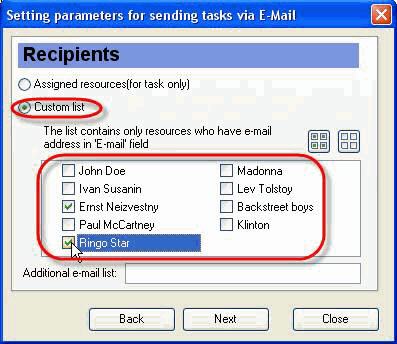
Select ‘Custom list’ radio button and check resources for sending e-mail
Note:
Tips:
- To quickly select all resources click on
 button button
- To quickly clear resource list click on
 button button
-
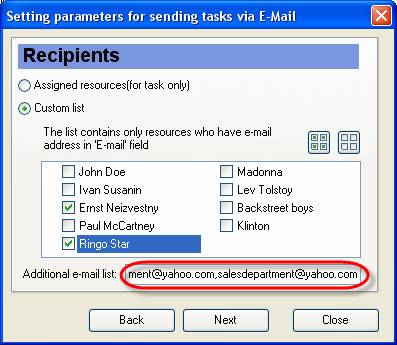
Enter additional e-mail addresses selected task group will be sent to into corresponding entry field. Several e-mail addresses are separated by comma or semicolon
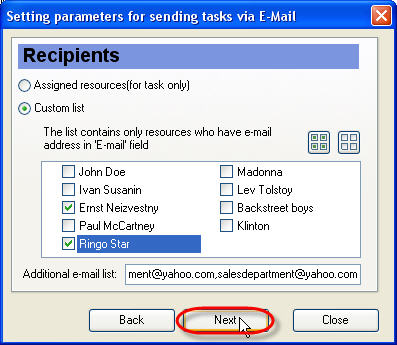
- Click ‘Next’ button
-
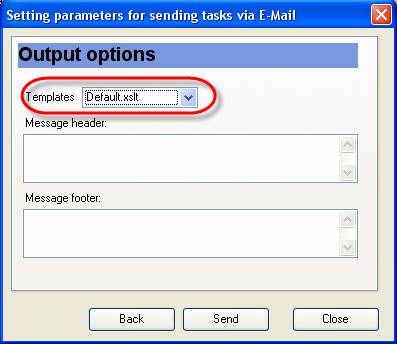
Select required template from ‘Templates’ drop-down list. This template defines the view of outgoing message.
Note:
-
You can create your own templates, go to the folder with VIP Task Manager product (by default it’s path is C:\Program Files\VIP Quality Software\VIP Task Manager Professional) and put them into ‘XSLT’ folder. After that your templates will be available in ‘Templates’ drop-down list of ‘Setting parameters for sending tasks via E-Mail’ window.
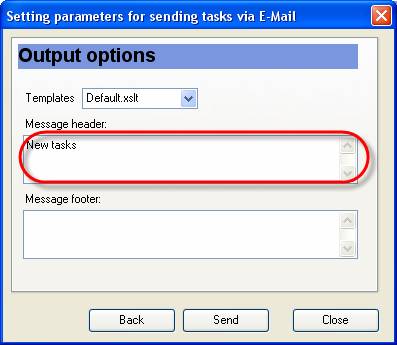
- Enter the header of e-mail into ‘Message header’ entry field
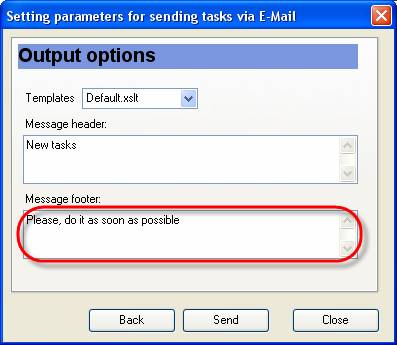
- Enter the footer of e-mail into ‘Message footer’ entry field
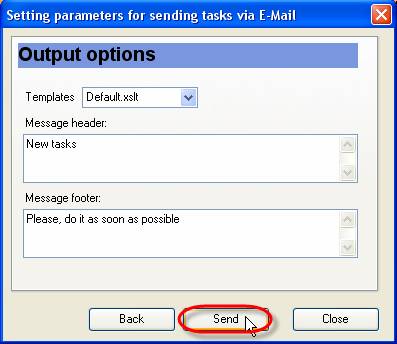
- Click ‘Send’ button
-
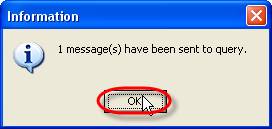
Click ‘Ok’ button in appeared information message. Your e-mail will be sent when timeout is finished
|












 Play Demo
 Try It FREE