|
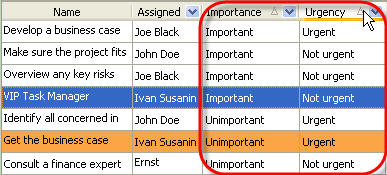
If you want to sort the tasks not only by urgency, but also by their importance, as it is shown on screenshot above, you can do the following steps:
- Go to main menu command [Tools -> Custom fields…]
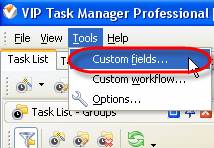
- Click ‘New’ button in ‘Edit custom fields’ window
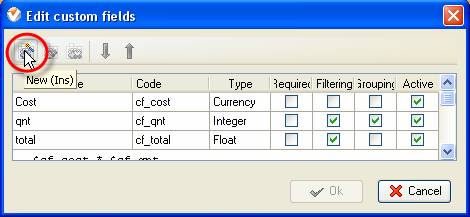
- Enter ‘Urgency’ into ‘Title:’ entry field in ‘Edit Custom Field’ window
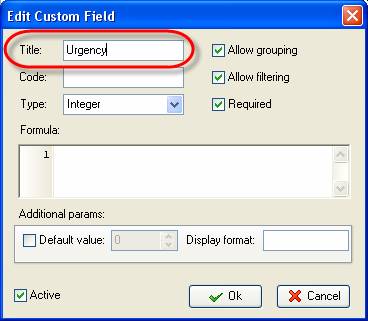
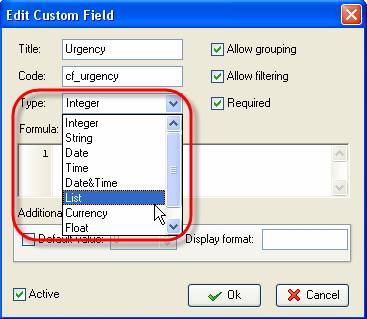
- Select ‘List’ from ‘Type:’ drop-down list
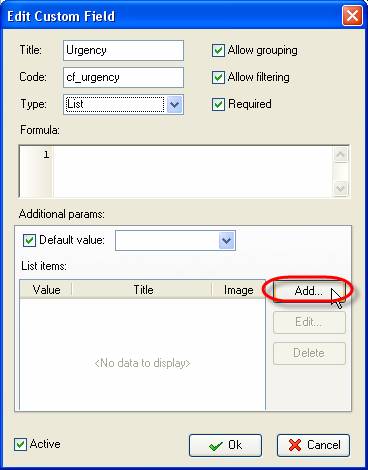
- Click ‘Add’ button in ‘Edit Custom Field’ window
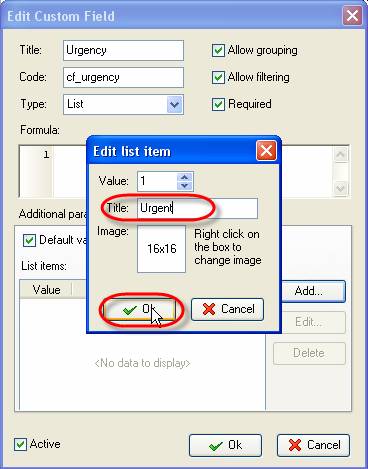
- Enter ‘Urgent’ into ‘Title’ entry field in ‘Edit list item’ window and click ‘Ok’
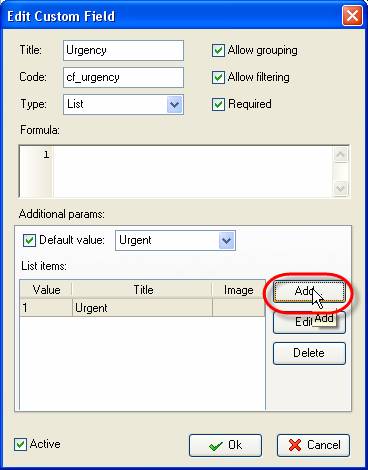
- Click ‘Add’ button in ‘Edit Custom Field’ window
- Enter ‘Not urgent’ into ‘Title’ entry field in ‘Edit list item’ window and click ‘Ok’
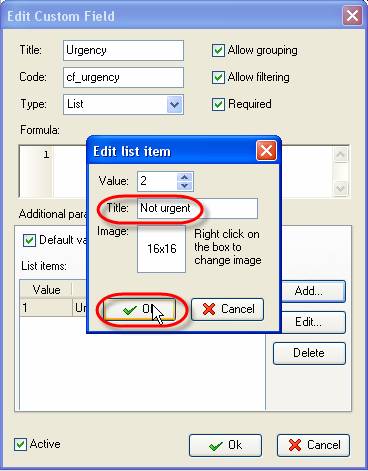
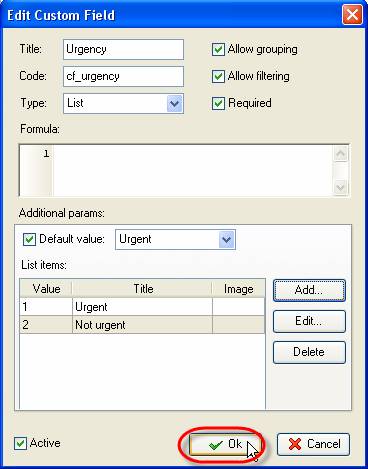
- Click ‘Ok’ button in ‘Edit Custom Field’ window
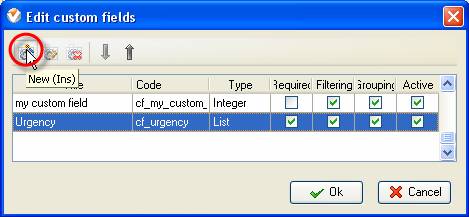
- Click ‘New’ button in ‘Edit custom fields’ window
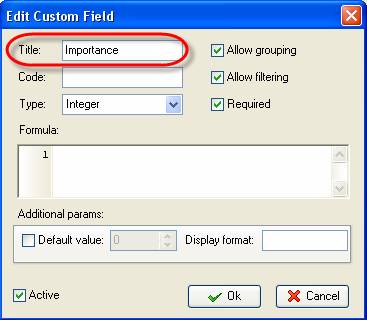
- Enter ‘Importance’ into ‘Title:’ entry field in ‘Edit Custom Field’ window
- Select ‘List’ from ‘Type:’ drop-down list
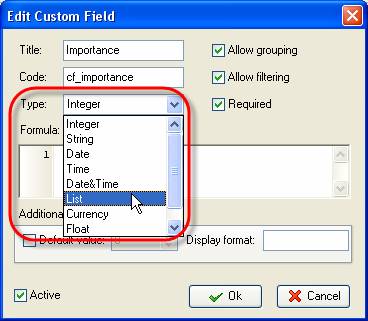
- Click ‘Add’ button in ‘Edit Custom Field’ window
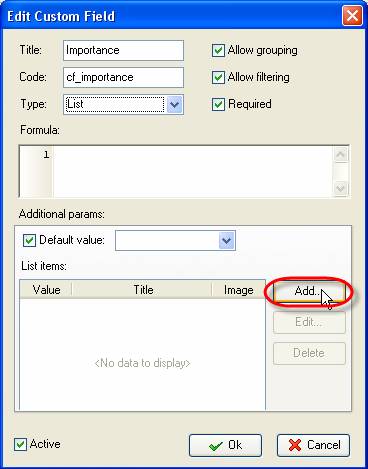
- Enter ‘Important’ into ‘Title’ entry field in ‘Edit list item’ window and click ‘Ok’
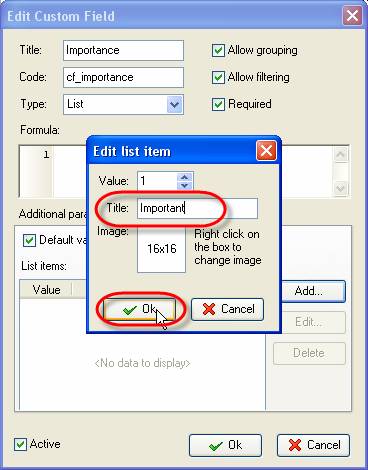
- Click ‘Add’ button in ‘Edit Custom Field’ window
- Enter ‘Unimportant’ into ‘Title’ entry field in ‘Edit list item’ window and click ‘Ok’
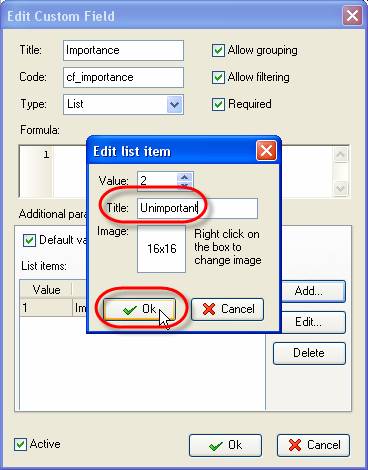
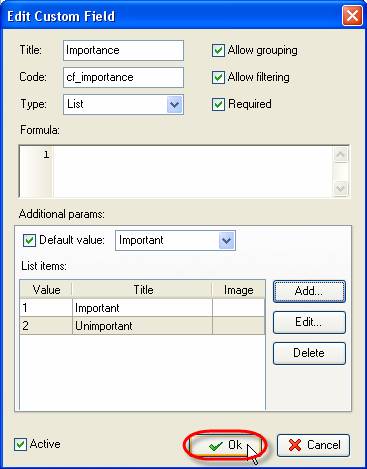
- Click ‘Ok’ button in ‘Edit Custom Field’ window
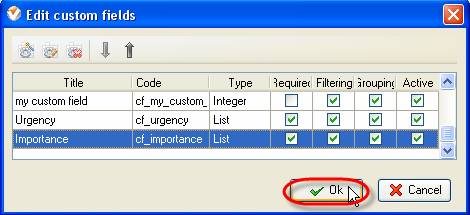
- Click ‘Ok’ button in ‘Edit custom fields’ window
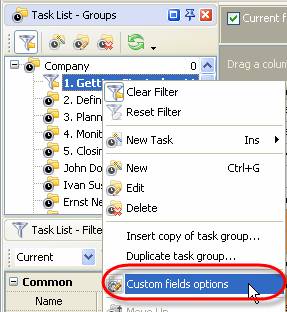
- Right click on task group you want these custom fields to be visible in and select ‘Custom fields options’ from drop-down list. If you want custom fields to be visible for all the
tasks of your database, right click on the top task group.
- Select ‘Urgency’ custom field from the list
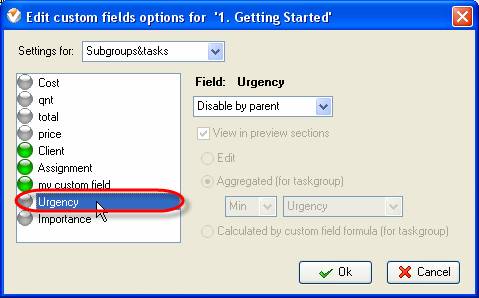
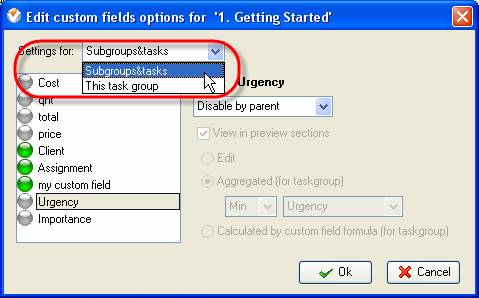
- Select ‘Subgroups&tasks’ from ‘Setting for:’ drop-down list
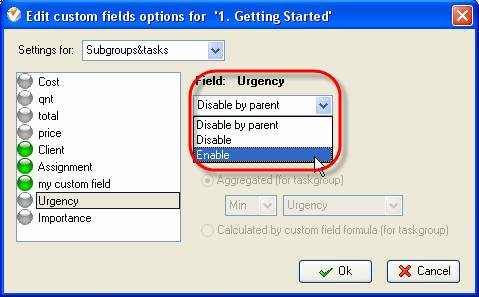
- Select ‘Enable’ from ‘Field: Urgency’ drop-down list
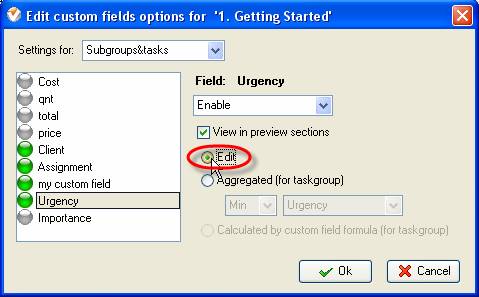
- Check ‘Edit’ option
- Select ‘Importance’ custom field from the list
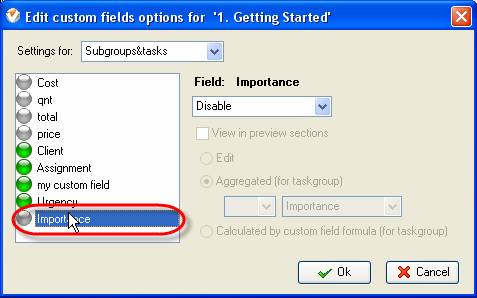
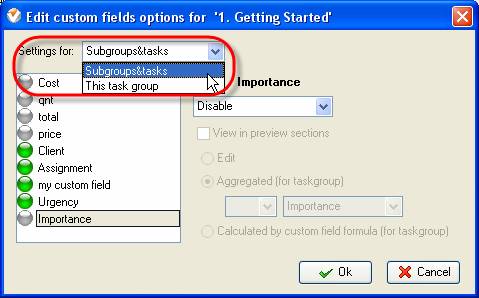
- Select ‘Subgroups&tasks’ from ‘Setting for:’ drop-down list
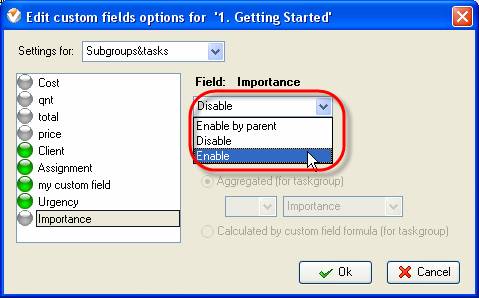
- Select ‘Enable’ from ‘Field: Importance’ drop-down list
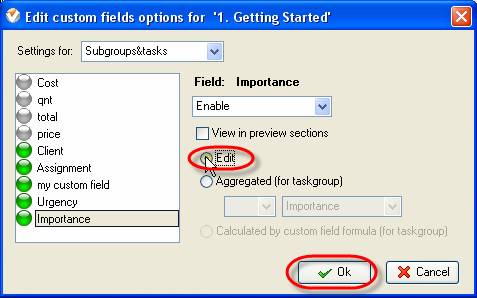
- Check ‘Edit’ option and click ‘Ok’ button


|
 |
Skype

Available: Workdays, Monday - Friday
8 am - 8 pm GMT for Europe/Asia
1 am - 1 pm PST for America
|
|
 |
| |
Feb 1, 2016
TopTenReview: VIP Organizer is one of the best organizer software
TopTenReview has published Organizer Software Review 2016 and our product has been included to the list of the best software programs for personal information management. The author considers VIP Organizer to be a good choice if you are looking for something simple to help you organize your days.
More News
|
|
| |
|













 Try Travel Bundle FREE


