|
If you have the database on your computer and want to move it to the company server, or you have a new server and want to move the database from old server there, please, follow the steps below:
- Close the application on all computers.
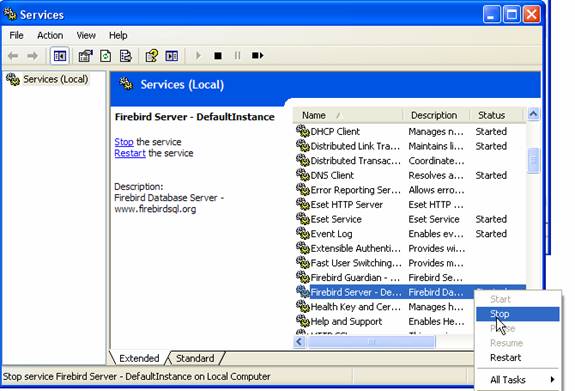
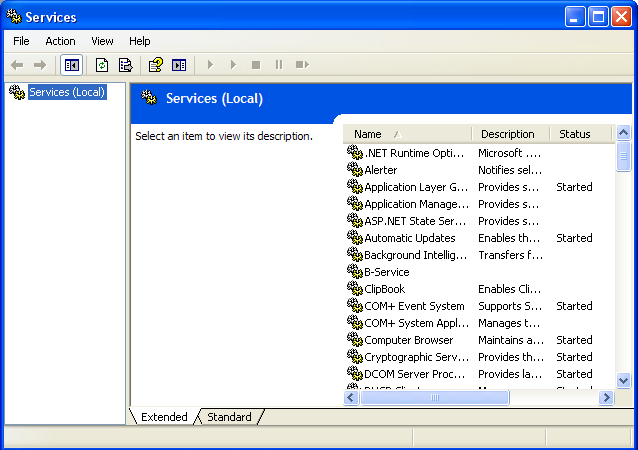
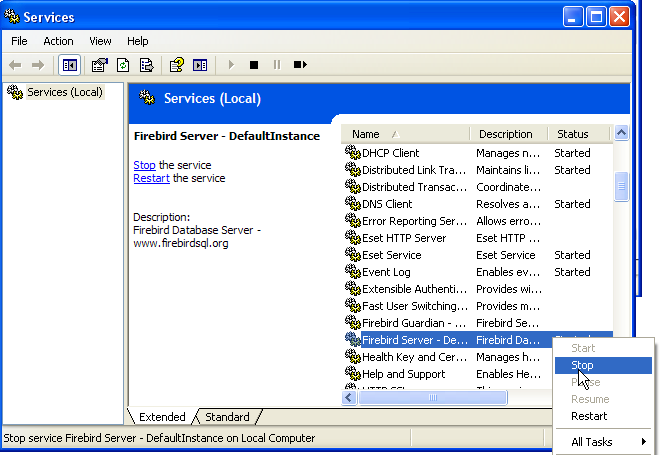
- Go to Start->>Settings->Control Panel->Administrative Tools->Services on old server computer.
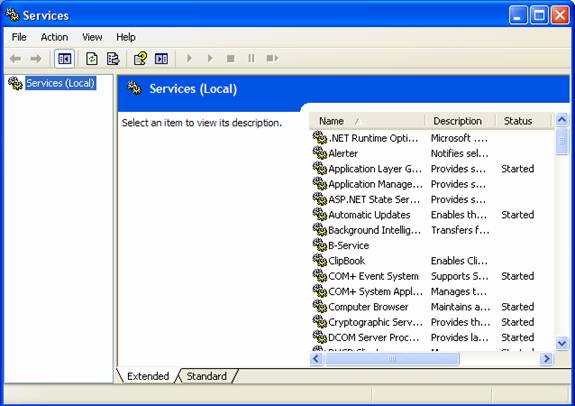
- Stop "Firebird Server"
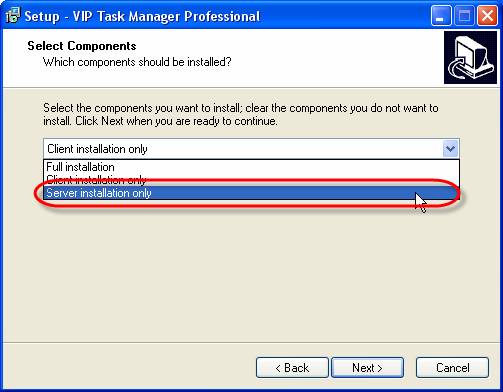
- Select ‘Full Installation’ or ‘Server installation only’ while installing the program on your new server
-
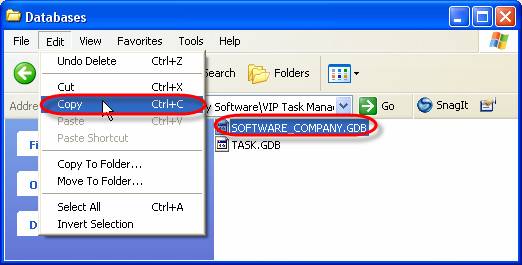
Go to C:\Program Files\VIP Quality Software\VIP Task Manager Professional\Databases on your old server and copy your database to the same place on the new server. Note: Now you can start Firebird Server on your old server if you want to continue using it.
- On the new server go to Start -> All programs -> VIP Quality Software - > VIP Task Manager Professional -> Database Manager

- Select ‘Databases’ tab
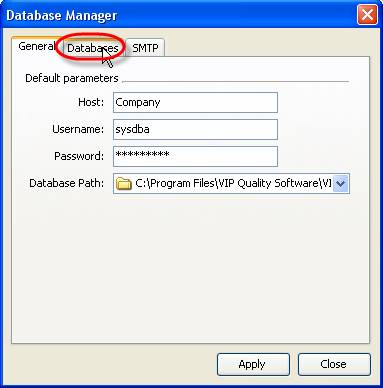
- Click ‘Register’ button
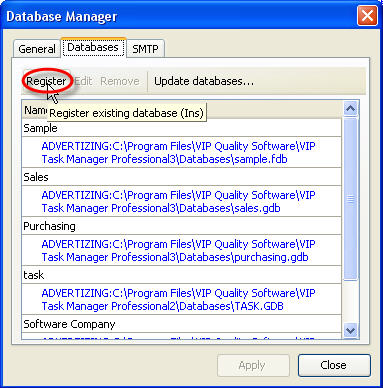
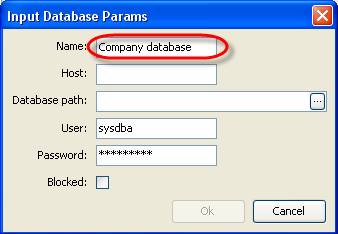
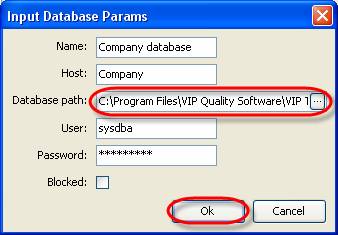
- Enter database name into ‘Name:’ field. It will be a name of your root task group
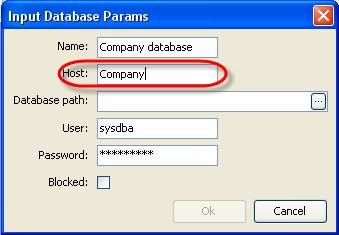
- Enter host name of your computer in the network into ‘Host:’ field
- Enter the path to this database into ‘Database path:’ field and click ‘Ok’ button
Important: the default password is 'masterkey'


|
 |
Skype

Available: Workdays, Monday - Friday
8 am - 8 pm GMT for Europe/Asia
1 am - 1 pm PST for America
|
|
 |
| |
Feb 1, 2016
TopTenReview: VIP Organizer is one of the best organizer software
TopTenReview has published Organizer Software Review 2016 and our product has been included to the list of the best software programs for personal information management. The author considers VIP Organizer to be a good choice if you are looking for something simple to help you organize your days.
More News
|
|
| |
|













 Try Travel Bundle FREE


