- Create task group "Conference Template"
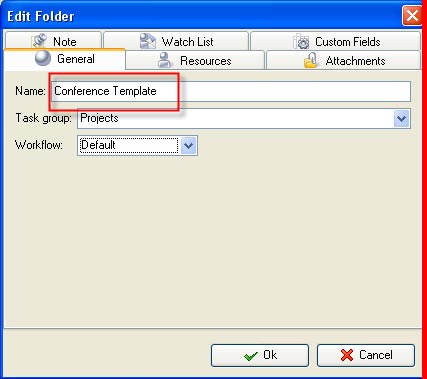
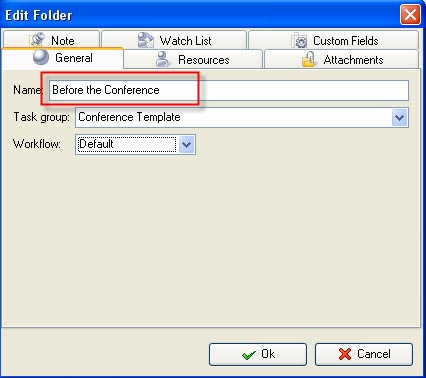
- Create subgroup "Before the Conference" in task group "Conference Template"
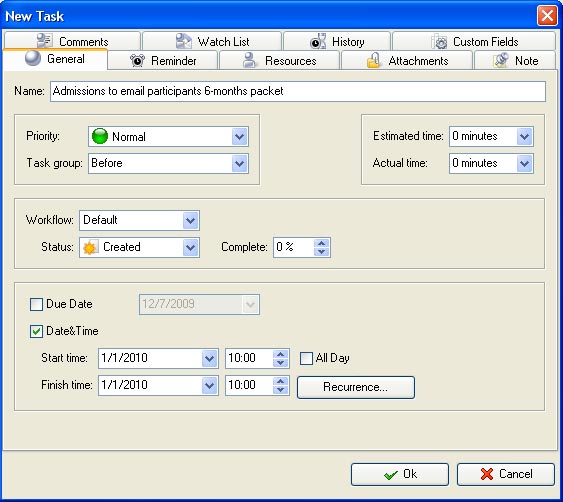
- Create tasks in subgroup "Before the Conference"
Note that the first task in the subgroup should be assigned to Start/Finish date at X-days before the Conference date (for example initial task "Admissions to email participants 6-months packet" can be planned for 180 days before the conference) and the last task in the subgroup should be assigned to Start/Finish date of the conference beginning.
- Create subgroup "After the Conference" in task group "Conference Template"
- Create tasks in subgroup "After the Conference"
Note that the first task in the subgroup should be assigned to Start/Finish date of the conference beginning and the last task in the subgroup should be assigned to Start/Finish date at X-days after the conference date (for example the last task "Draft and Mail 1 yr follow up packet w/ Plan copy" can be planned for 365 days after the conference date)
- Create task group "Conference 1"
- Duplicate subgroup "Before the Conference" from task group "Conference Template" to task group "Conference 1"
Note that while duplication you need to set a beginning date of Conference 1 and select option Finish Date in drop down list.
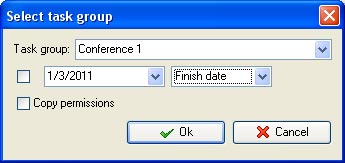
- Duplicate subgroup "After the Conference" from task group "Conference Template" to task group "Conference 1"
Note that while duplication you need to set a beginning date of Conference 1 and select option Start Date in drop down list.
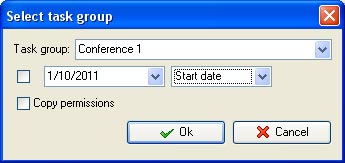
If you did everything right the program should automatically recalculate Start/Finish dates of all tasks depending on their previous settings before or after the conference date.














 Try Travel Bundle FREE


