|
To import the tasks from MS Outlook use the following steps:
- Start MS Outlook
- Start Task Manager
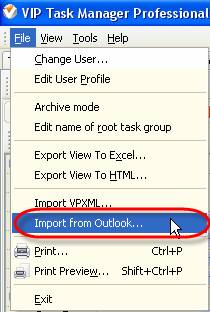
- Go to main menu command [File -> Import from Outlook…]
-
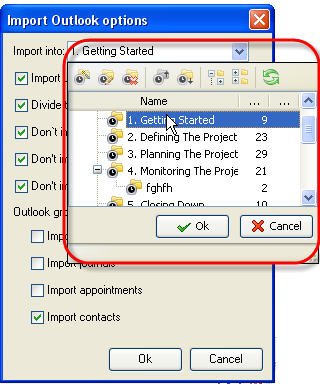
Open ‘Import into:’ drop-down box and select task group to import the tasks from MS Outlook
Note:
-
To select task group you can highlight it and click ‘Ok’ button or double click on task group
-
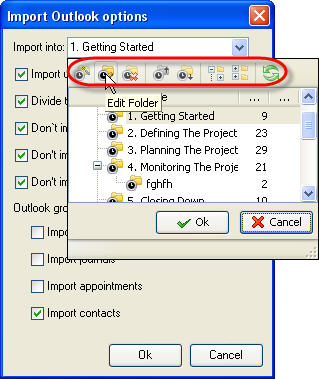
To create new task group, edit, delete, sort, expand or collapse existing ones click on corresponding button on ‘Import into:’ drop-down box toolbar
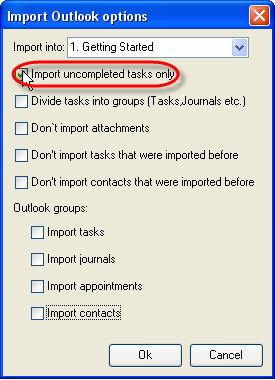
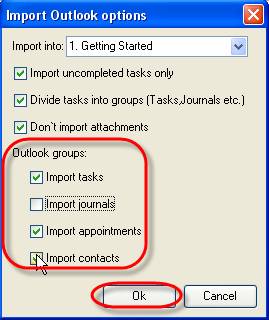
- Check ‘Import uncompleted tasks only’ option to import only the undone tasks
-
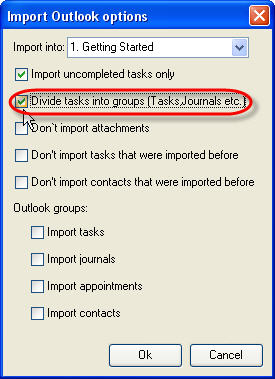
Check ‘Divide tasks into groups (Tasks,Jornals etc.)’ option to import the tasks, journals, appointments, etc into corresponding task groups in the same form as they are in Outlook.
Task Manager automatically creates ‘Tasks’, ‘Journals’, ‘Appointments’, etc, task groups. If this option is not checked, tasks, journals, etc will be placed into selected task group.
-
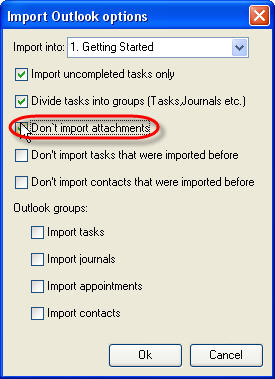
Check ‘Don’t import attachments’ option to import the data from Outlook without attachments
-
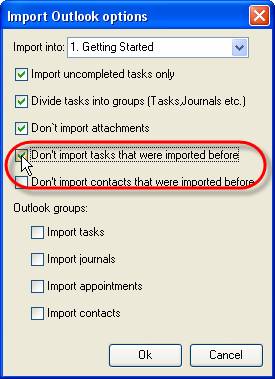
Check “Don’t import tasks that were imported before” and “Don’t import contacts that were imported before” options not to rewrite the tasks and contacts that imported earlier.
-
Check the data groups from ‘Outlook groups:’ section to import from Outlook (tasks, journals, appointments, contacts) and click ‘Ok’ button
-
MS Outlook asks your permission to access its e-mail database. Check ‘Allow access for’ option, select time interval from drop-down list and click ‘Ok’ button
|












 Play Demo
 Try It FREE