|
Permissions Panel Flash Presentation 
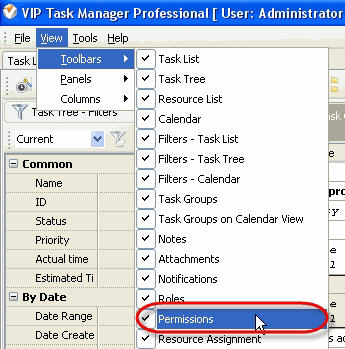
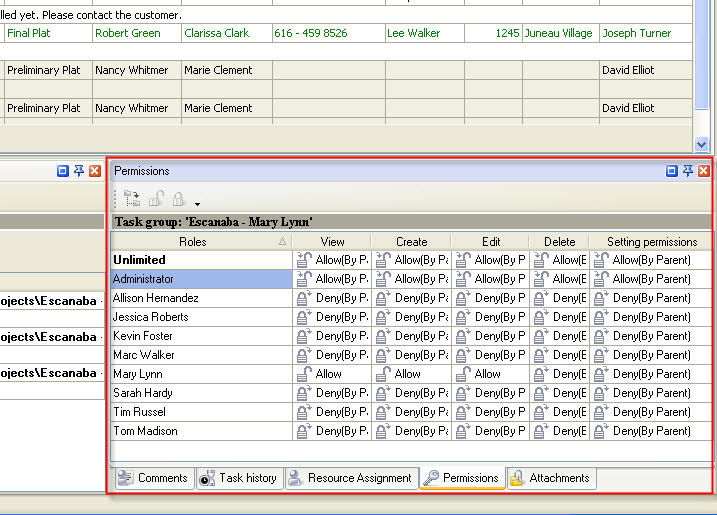
Permissions panel features tools for granting or denying users permissions to see, create, edit and delete tasks and task groups
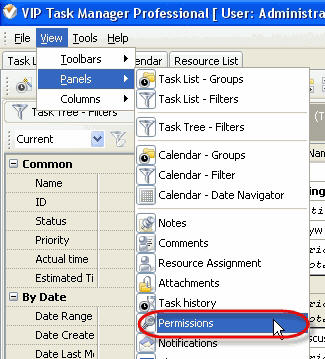
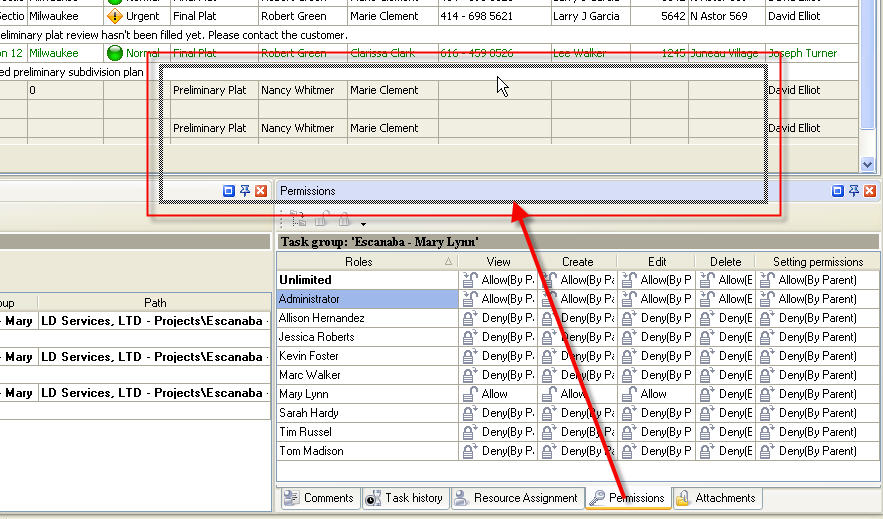
By default Permissions panel is located at the right bottom part of application window.
Tips:
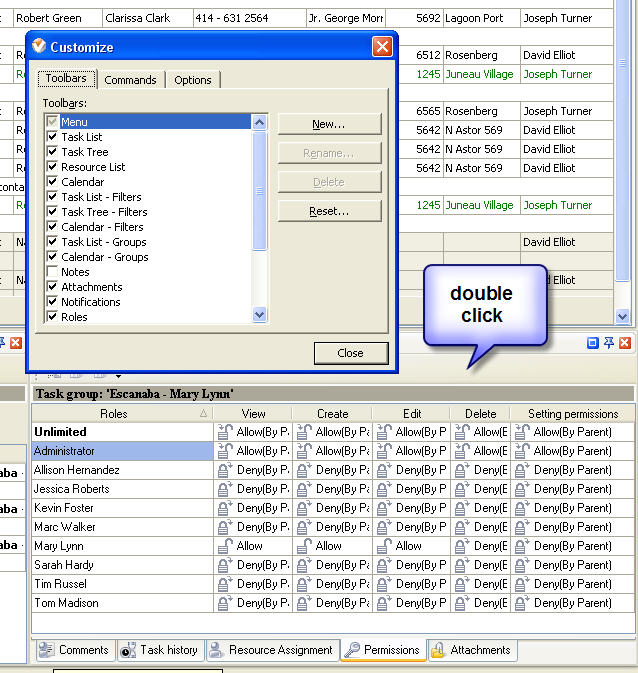
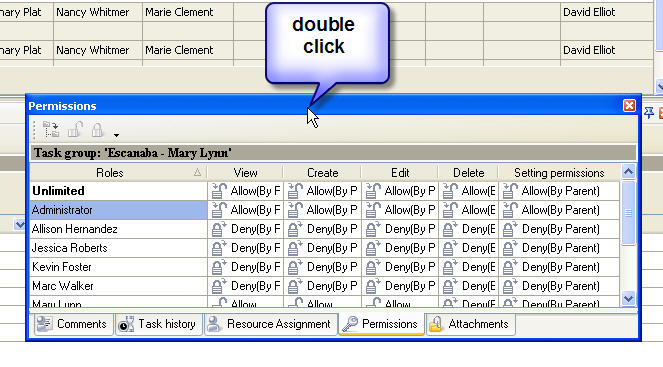
- To take Permissions panel out its default location double click on its tab.
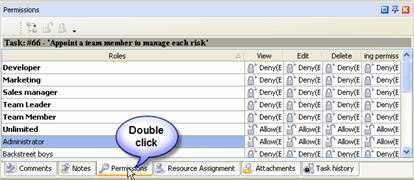
To return Permissions panel to its default location double click on its title.
Permissions Toolbar
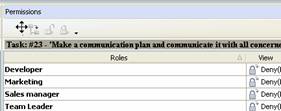
By default Permissions toolbar is located at left top part of Permissions panel.
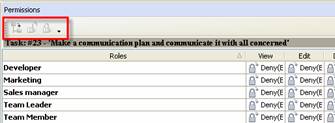
The following table describes each of the Permissions Toolbar buttons.
Button |
Description |

|
Inherit permissions from parent role |

|
Grant selected permission to corresponding role |

|
Deny selected permission to corresponding role |

|
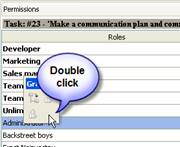
Add or remove buttons to Permissions Toolbar |
Tips:
Permissions grid
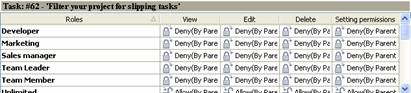
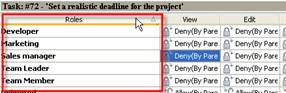
Left click on Roles column header allows to sort roles in ascending or descending order
Right click on Permissions grid allows to carry out following operations
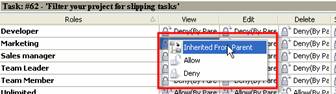 |
- Inherit permissions from parent role
- Grant selected permission to corresponding role
- Deny selected permission to corresponding role
|
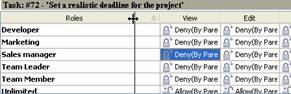
By dragging columns header border you can change columns' width.
Tips:
|










 button at its right bottom corner
  button at its right bottom corner
  button at its right bottom corner
 Play Demo
 Try It FREE