|
By default Resource List toolbar is located at the left top part of Resource List view.
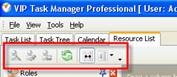
The following table describes each of the Resource List Toolbar buttons.
Button |
Hot Key |
Description |

|
Ins |
Create a new resource |

|
F4 |
Edit existing resource |

|
F8 |
Delete existing resource |

|
F5 |
Refresh tasks on Resource List grid |

|
Ctrl + W |
Apply columns auto width |

|
|
Add or remove columns on Resource List grid |

|
|
Add or remove buttons to Resource List Toolbar |
Tips:
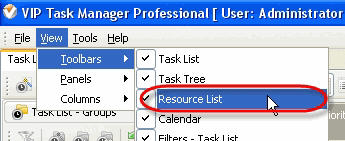
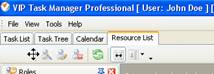
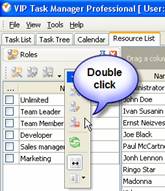
Resource List Grid
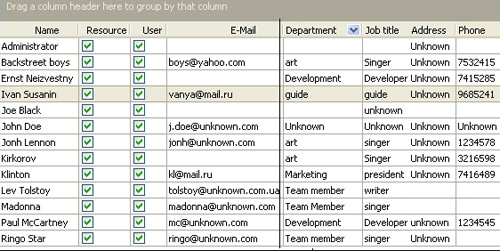
Right click on the task allows to carry out following operations
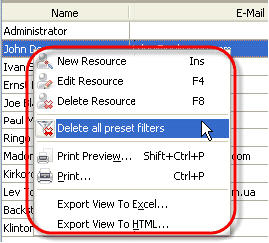 |
- Create a new resource
- Edit selected resource
-
Delete selected resource
-
Delete all preset filters (is available only for administrator)
-
Preview Resource List grid, create and edit your own print design
-
Print out Resource List grid
-
Export Resource List grid to Excel
-
Export Resource List grid to HTML
|
|
Column Headers
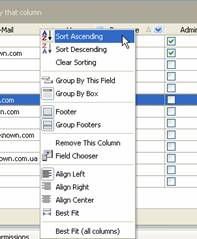
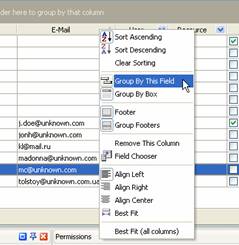
Right click on column header allows to carry out following operations on Resource List Grid
| | 
| -
Sort resources ascendingly by selected column
-
Sort resources descendingly by selected column
-
Clear sorting by selected column
| |
|
| |
|
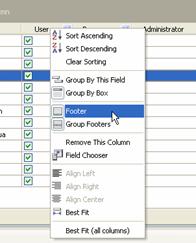
- Display or hide Resource List Grid footer
- Display or hide Resource Group footers
| |
|
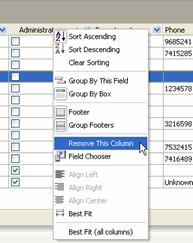
- Remove selected column from Resource List grid
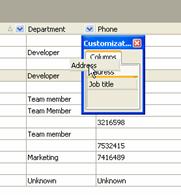
- Add or remove columns to Resource List grid
| |
|
-
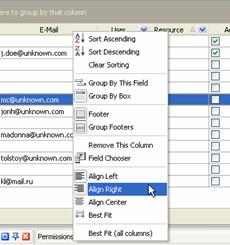
align left selected column
-
align right selected column
-
align center selected column
-
Set selected column best fit
-
Set all columns best fit
|
| Left click on column header allows to sort resources ascendingly or descendingly by selected column
|
|
|
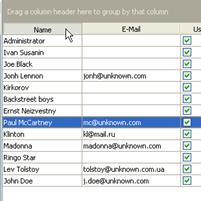
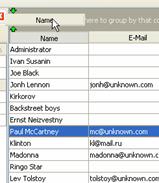
| Drag&Drop method applied to column header allows to carry out following operations on Resource List Grid
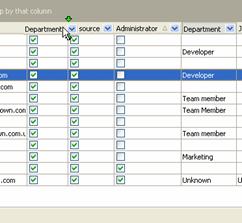
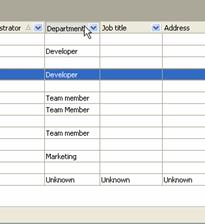
- Replace selected column where you need
| |
|
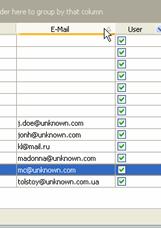
- Group resources by selected column
|
Resource List Grid Footer
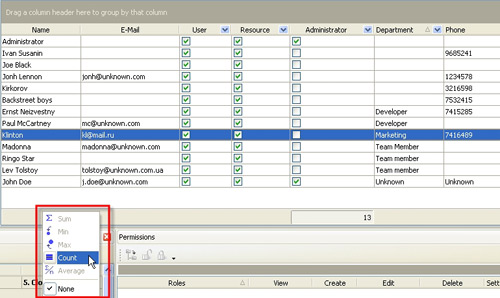
Right click on Resource List grid footer under particular column allows to carry out following operations
-
Watch total value of selected resource property, where it makes sense
-
Watch minimum value of selected resource property, where it makes sense
-
Watch maximum value of selected resource property, where it makes sense
-
Watch the account of the resources that are displayed on Resource List grid
-
Watch everage value of particular resource property, where it makes sense
-
Hide all values from the footer under selected column
|














 Play Demo
 Try It FREE