|
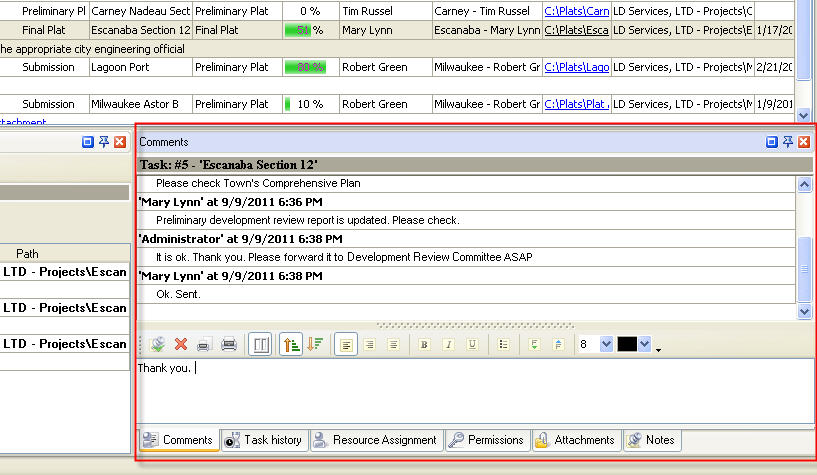
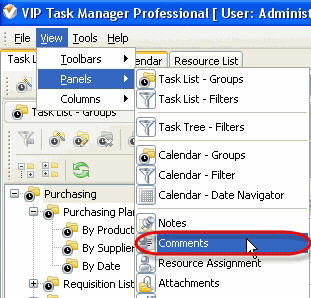
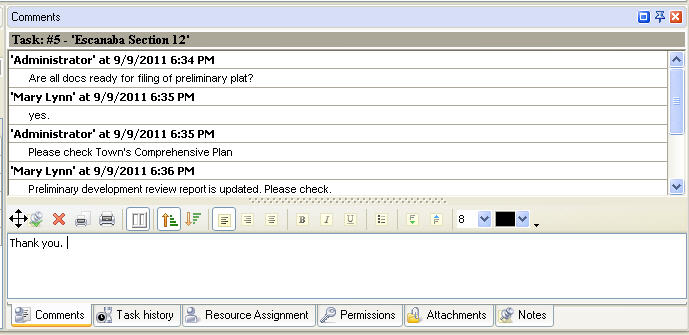
Comments panel features tools for adding comments to task
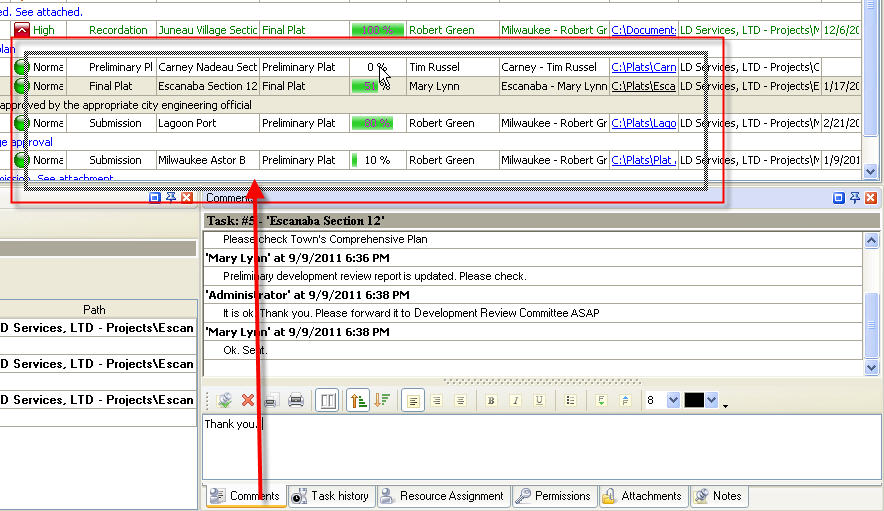
By default Comments panel is located at the right bottom part of application window.
Tips:
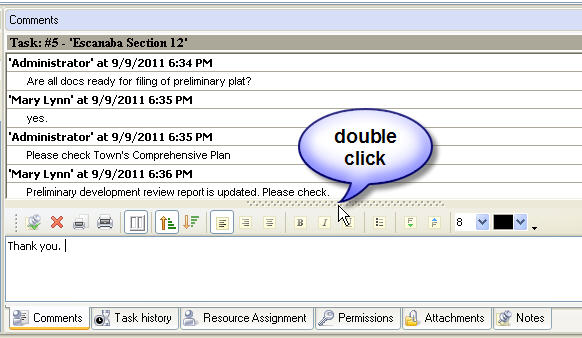
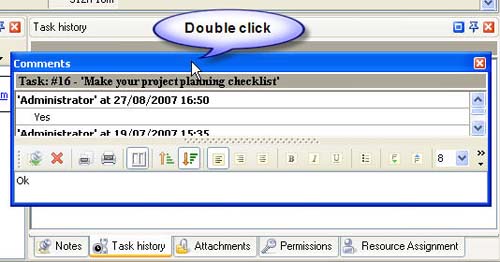
- To take Comments panel out its default location double click on its tab.
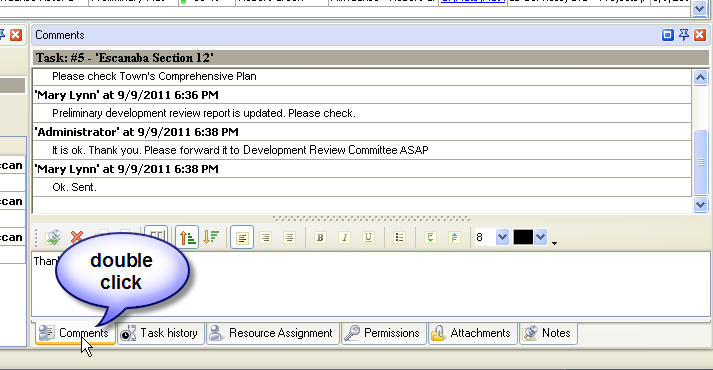
To return Comments panel to its default location double click on its title
Comments Toolbar
By default Comments toolbar is located in the middle of Comments panel above the comments entry field.
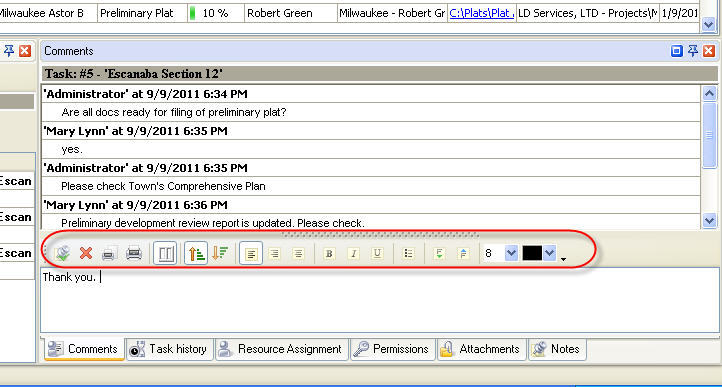
The following table describes each of the Comments Toolbar buttons.
Button |
Hot key |
Description |

|
Ctrl + S |
Add new comment to task comments section |

|
|
Cancel last changes of the comments |

|
|
Sort the comments by the date in ascending order |

|
|
Sort the comments by the date in descending order |

|
|
Switch comment panel layout from horizontal to vertical and vice versa |

|
Ctrl + B |
Set text bold font |

|
Ctrl + I |
Set text italic font |

|
Ctrl + U |
Set text underlined font |

|
Alt + L |
Set text left alignment |

|
Alt + C |
Set text center alignment |

|
Alt + R |
Set text right alignment |

|
|
Enter the text in form of bullet list |

|
|
Decrease text font size one point |

|
|
Increase text font size one point |

|
|
Set text font size |

|
|
Set text font color |

|
|
Preview Comments grid contents, create and edit your own print design |

|
|
Print out Comments grid contents |

|
|
Add or remove buttons to Comments Toolbar |
Tips:
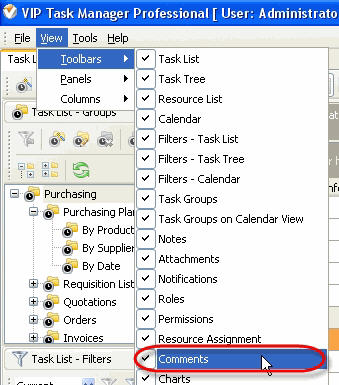
- To display or hide Comments Toolbar use
main menu command [View -> Toolbars -> Comments].
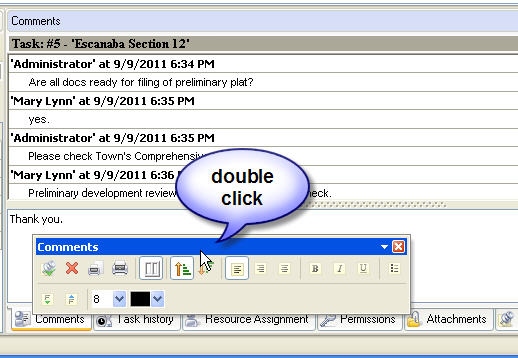
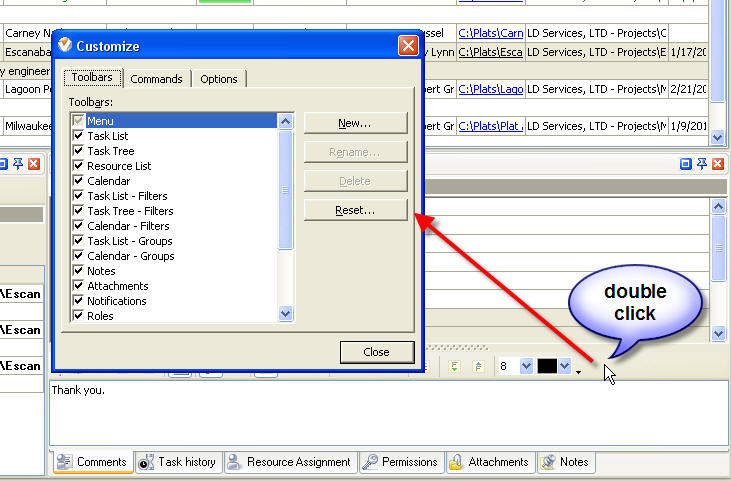
- To take Comments Toolbar out its default location and vice versa double click on it.
Comments grid
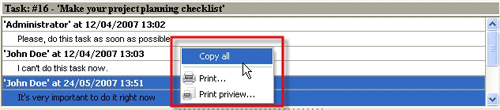
Right click on Comments grid allows to carry out following operations:
Comments entry field

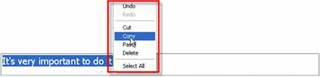
Right click on Comments entry field allows to carry out following operations
Tips:
|










 button at its right bottom corner
  button at its right bottom corner
  button at its right bottom corner
 Play Demo
 Try It FREE